
Theme File Version History
Every time you save a theme file in the FlashyPanels code editor, the previous version is automatically preserved. You can view the full history of a file, compare any two versions side by side, and restore an older version in one click — without touching the live site until you are ready.
This is for panel owners who edit their own theme. If you run a rental SMM panel on one of the 30+ ready themes and only change colours and logo, you never need it. The moment you open a template to move a block or add a banner, version history is what lets you undo it.
What gets tracked
Version history is available for Twig template files (the .twig files that control your panel's page layouts and design). Each time you save a file through the Theme Code Editor, a new version is recorded automatically. The very first time you open and save a file, a baseline snapshot is captured so you always have the original to fall back to.
CSS and JS files are editable in the same editor but version history applies only to Twig files.
How to open the Theme Code Editor
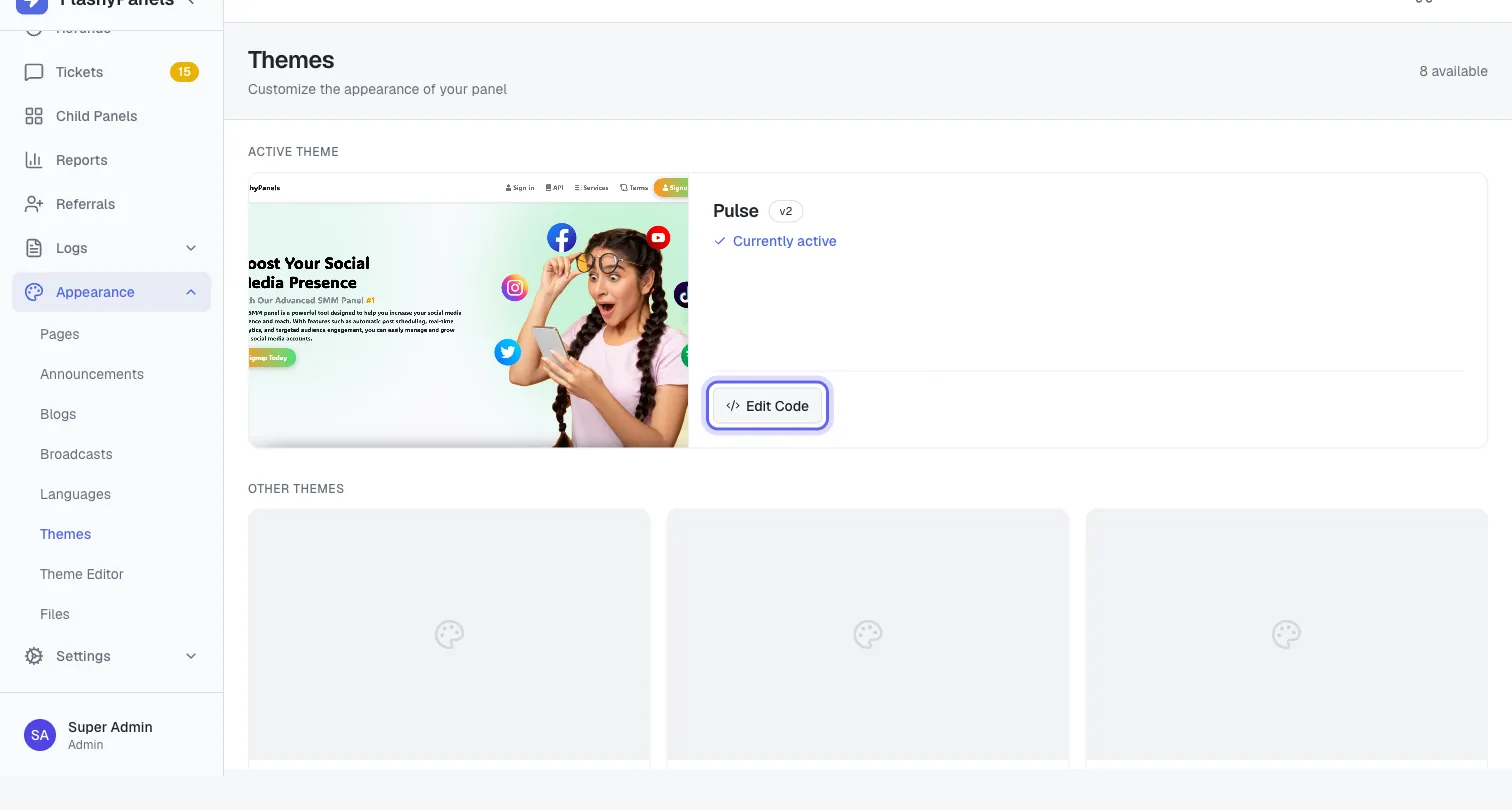
In your FlashyPanels admin panel, go to Appearance > Themes, click the Edit Code button on any theme, then select a file from the left panel. The editor opens with the current live content.
Saving a file with a comment
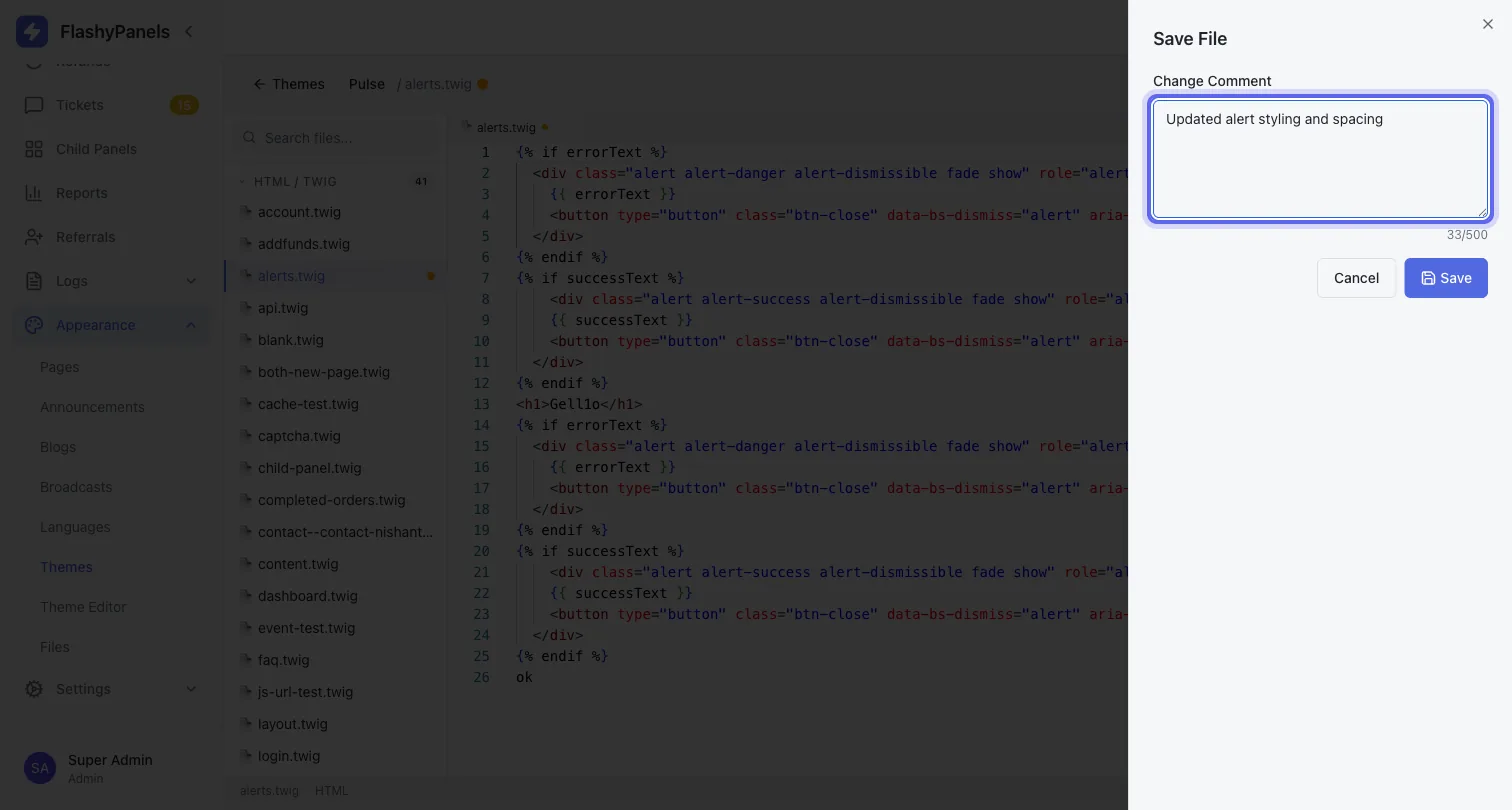
After making changes, click the Save button at the top of the editor. A comment field appears — you can type a short note describing what you changed (for example, "Changed hero headline font size" or "Added new footer links"). The comment is optional but recommended so you can identify versions quickly in the history list.
Viewing version history
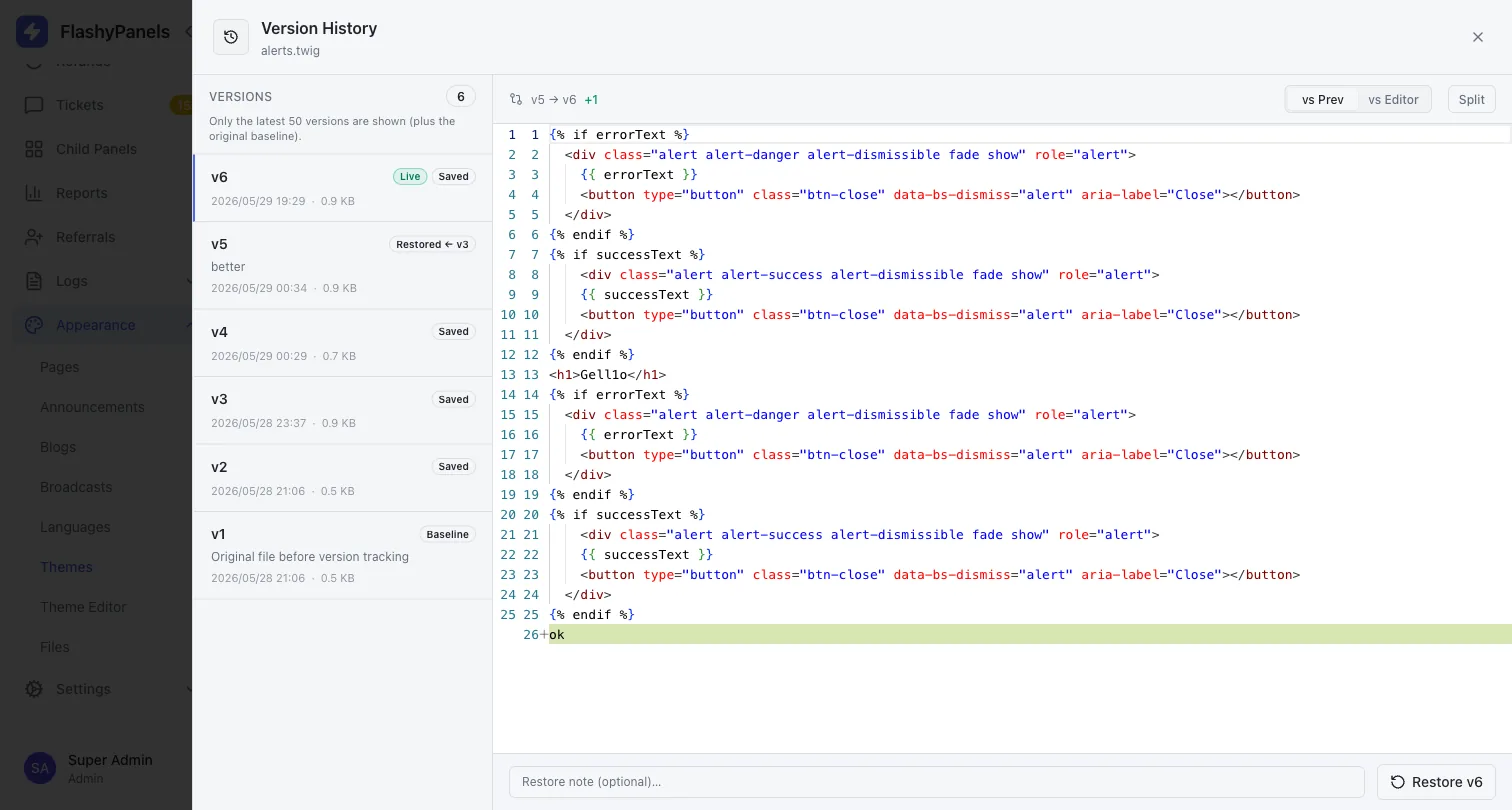
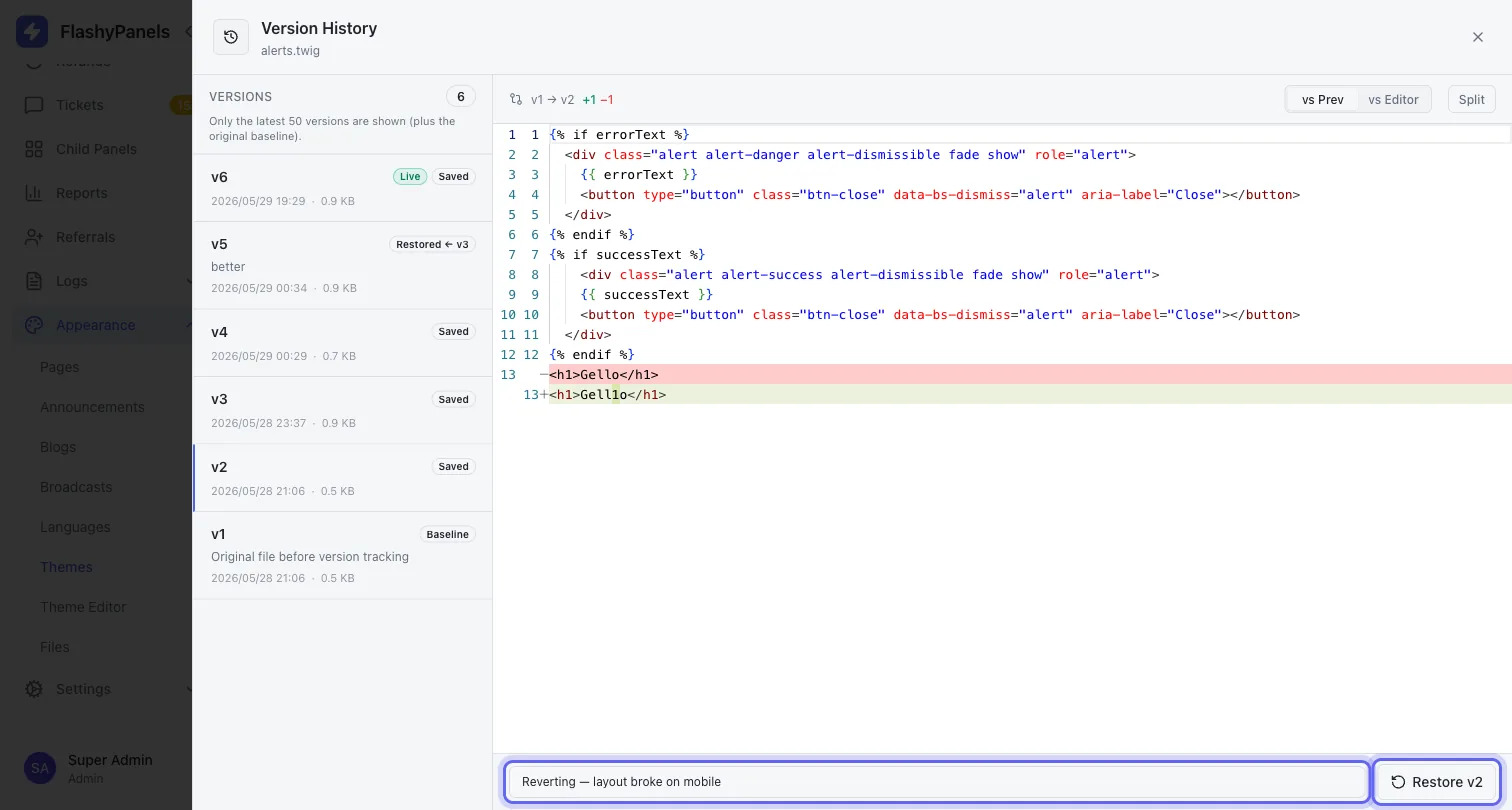
Click the Version History button while a Twig file is open. A panel slides in showing every saved version of that file in order from newest to oldest. Each entry shows:
- The version number
- Date and time it was saved
- The comment you added (if any)
- Whether it is the version currently live on your site
Comparing versions (diff view)
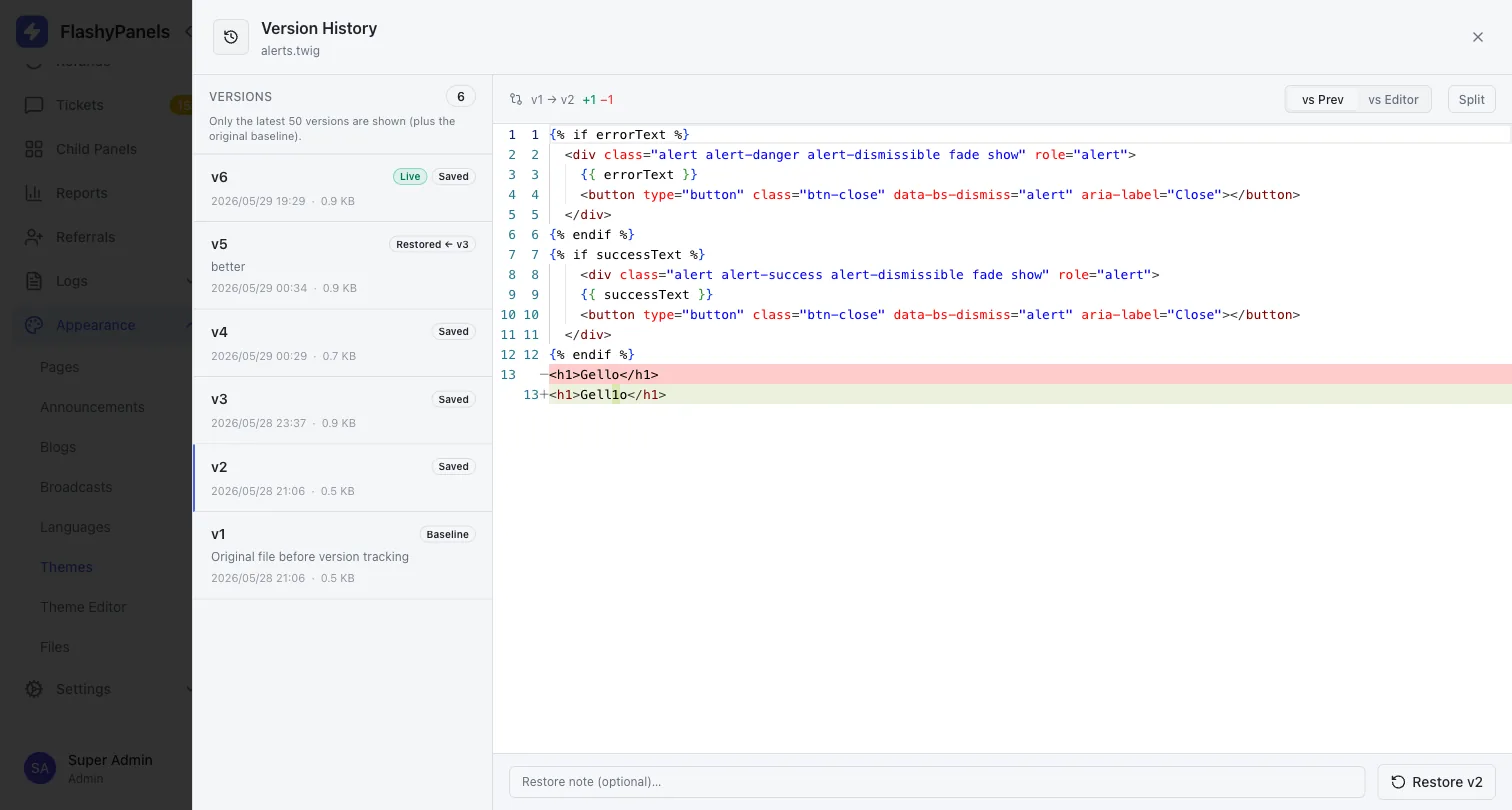
Click any version in the history list to open the diff view. This shows the selected version on the left and the current live version on the right, with additions highlighted in green and removals in red. Use this to understand exactly what changed before deciding whether to restore.
Restoring an older version
While viewing a version in the diff panel, click Restore This Version. You can optionally add a comment explaining why you are restoring (for example, "Reverting — layout broke on mobile"). The selected version immediately becomes the live file on your site, and a new restore entry appears in the history so there is a clear record of what happened.
Conflict protection
If two admin users edit the same file at the same time, or if the file was changed elsewhere while your editor was open, FlashyPanels will detect the conflict and block the save. You will see a message indicating the file was modified since you opened it. Refresh the editor to load the latest version, then re-apply your changes. This prevents one person's edits from silently overwriting another's.
Tips for keeping history clean
- Always add a comment when saving — a short note like "Updated contact form section" makes the history list much easier to navigate when you need to roll back weeks later.
- Check the diff before restoring — the side-by-side view makes it easy to confirm you are restoring the right version without guessing.
- History is per-file and per-theme — each theme and each file has its own independent history. Editing
home.twigin the Default theme does not affecthome.twigin any other theme. - Restores are non-destructive — restoring an old version does not delete newer versions. The history grows forward, so you can restore back to your latest save at any time.
Prefer not to edit code at all? The managed Prism theme is updated for you, and every other design option is listed under features. Setting up payments next? See the payment methods guide.